
TL;DR: Mango is a free iOS app that turns your Twilio phone numbers into a fully functional phone system. Make calls, send SMS/RCS/WhatsApp messages, set up voicemail, and configure business hours—all without writing any code. Free for one phone number; you only pay Twilio's usage rates.
Have you ever wanted to use your Twilio phone numbers just like a regular phone app? That's exactly what Mango does. It's an iOS app that brings your Twilio-powered phone numbers to your iPhone or iPad, letting you make calls, send texts, and even use RCS messaging—all from one beautifully designed app.
In this guide, we'll walk you through everything Mango can do and how to get started.
What Is Mango?
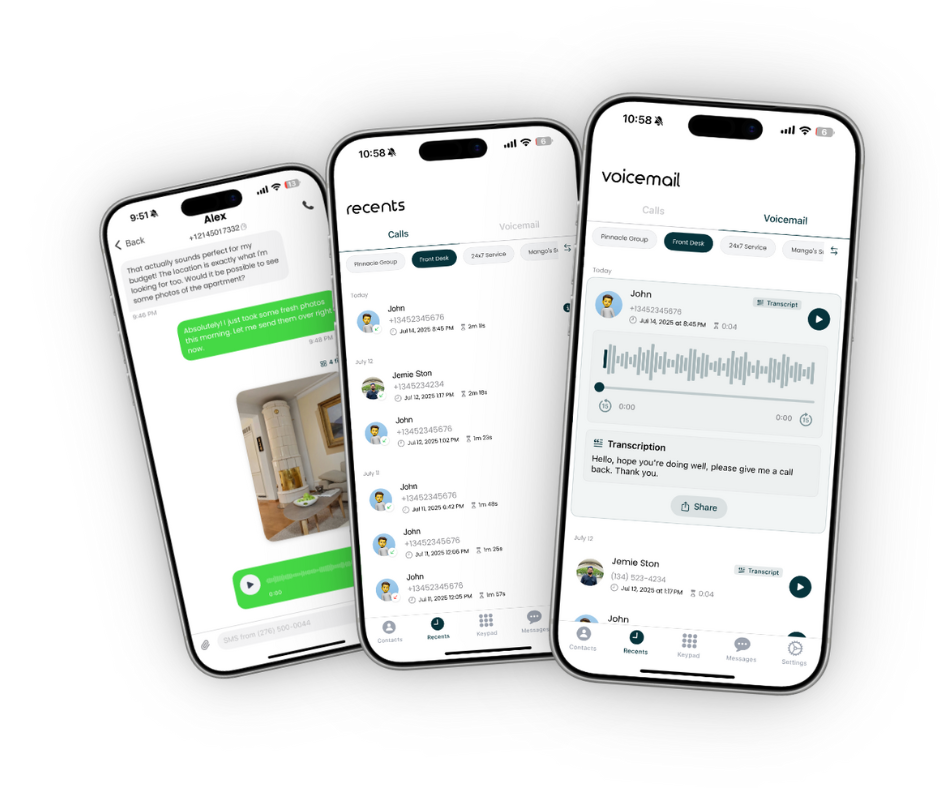
Mango is a mobile app for iOS that connects to your Twilio account. Think of it as the missing phone app for your Twilio numbers. Instead of dealing with complex APIs or web dashboards, you get a native mobile experience that feels just like using your regular phone—but with your business or secondary phone numbers.
New to Twilio? Check out our guide on What Is Twilio and Why You Need Mango to learn the basics.

Who Is Mango For?
Mango is perfect for:
- Small business owners who need a separate business line
- Entrepreneurs and freelancers who want to keep personal and work calls separate
- Remote teams that need shared phone numbers
- Developers who use Twilio and want an easy way to test their numbers
- Retail stores and restaurants looking to replace outdated landlines with a smarter solution—Mango's iPad app supports multitasking, so you can run it alongside your POS system
- Anyone who wants extra phone numbers without extra SIM cards
Key Features at a Glance
Here's what makes Mango powerful:
| Feature | What It Does |
|---|---|
| Voice Calls | Make and receive calls using your Twilio numbers |
| SMS Messaging | Send and receive text messages |
| RCS Messaging | Provide human support through RCS Business Messaging |
| WhatsApp Messaging | Connect with customers on the world's most popular messaging app |
| Multiple Numbers | Manage all your Twilio phone numbers in one app |
| Call Recording | Record important calls for later reference |
| Voicemail | Set up custom voicemail greetings |
| Business Hours | Route calls differently based on time of day |
| Contact Sync | Access your existing contacts seamlessly |
Getting Started with Mango
Setting up Mango takes just a few minutes. Here's the quick overview:
Step 1: Download the App
Download Mango from the App Store on your iPhone or iPad.
Step 2: Sign Up or Sign In
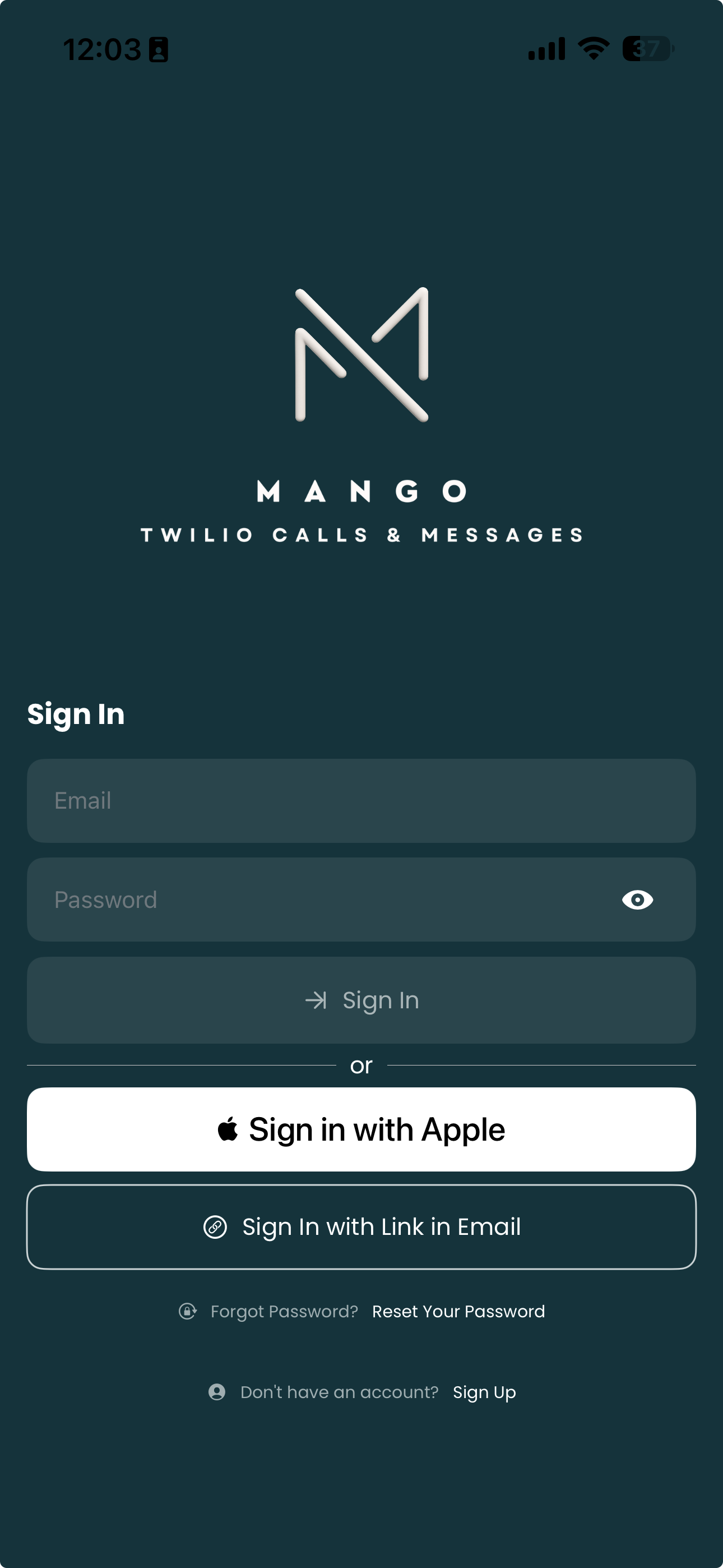
Create a new account or sign in if you already have one. The signup process is quick and straightforward.
Step 3: Connect Your Twilio Account
This is where the magic happens. You'll need your Twilio Account SID and Auth Token from your Twilio Console.
- Log in to your Twilio Console
- Find your Account SID and Auth Token on the dashboard
- Paste them into Mango
- Select your region
- Tap "Add Account"
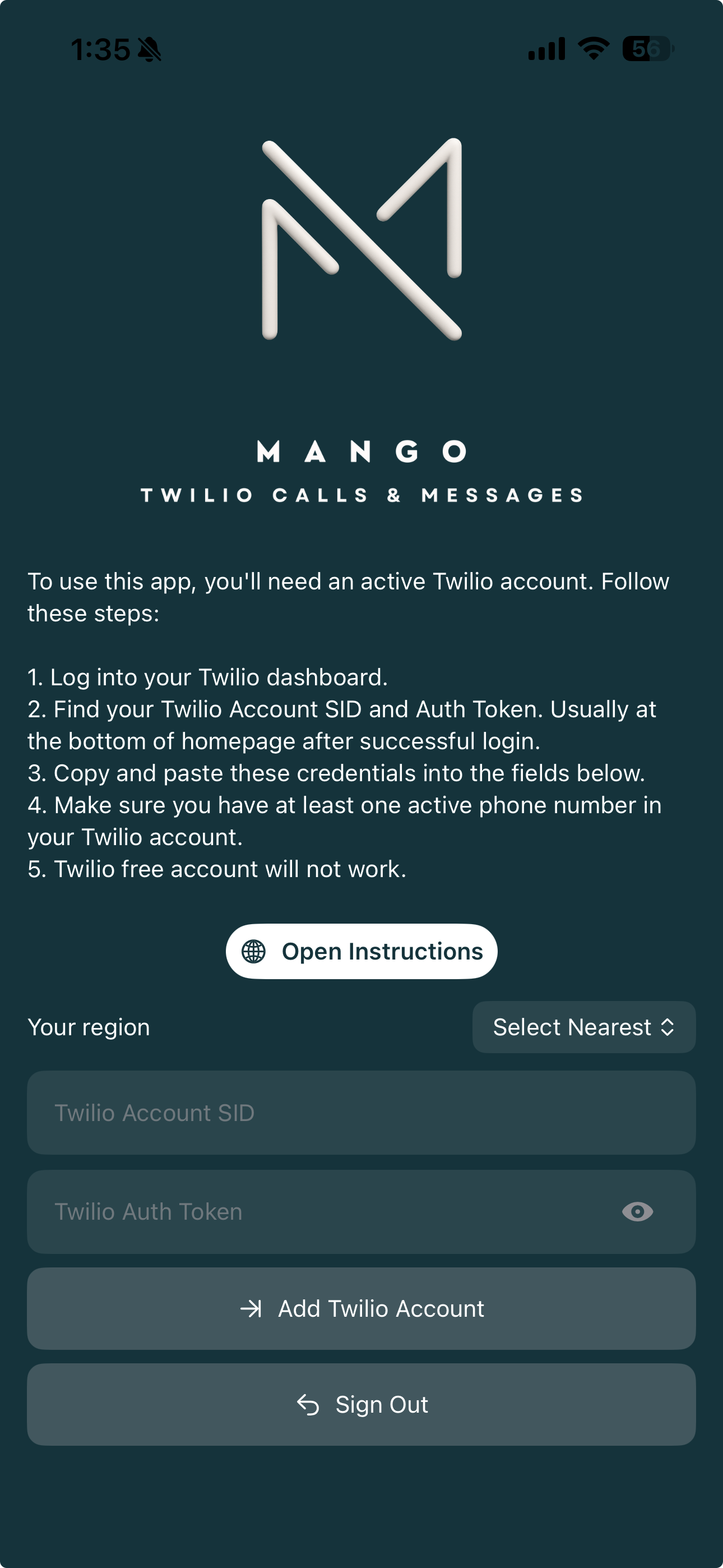
Note: You need a paid Twilio account with at least one purchased phone number. Free trial accounts don't work with Mango.
Step 4: Enable Your Phone Numbers
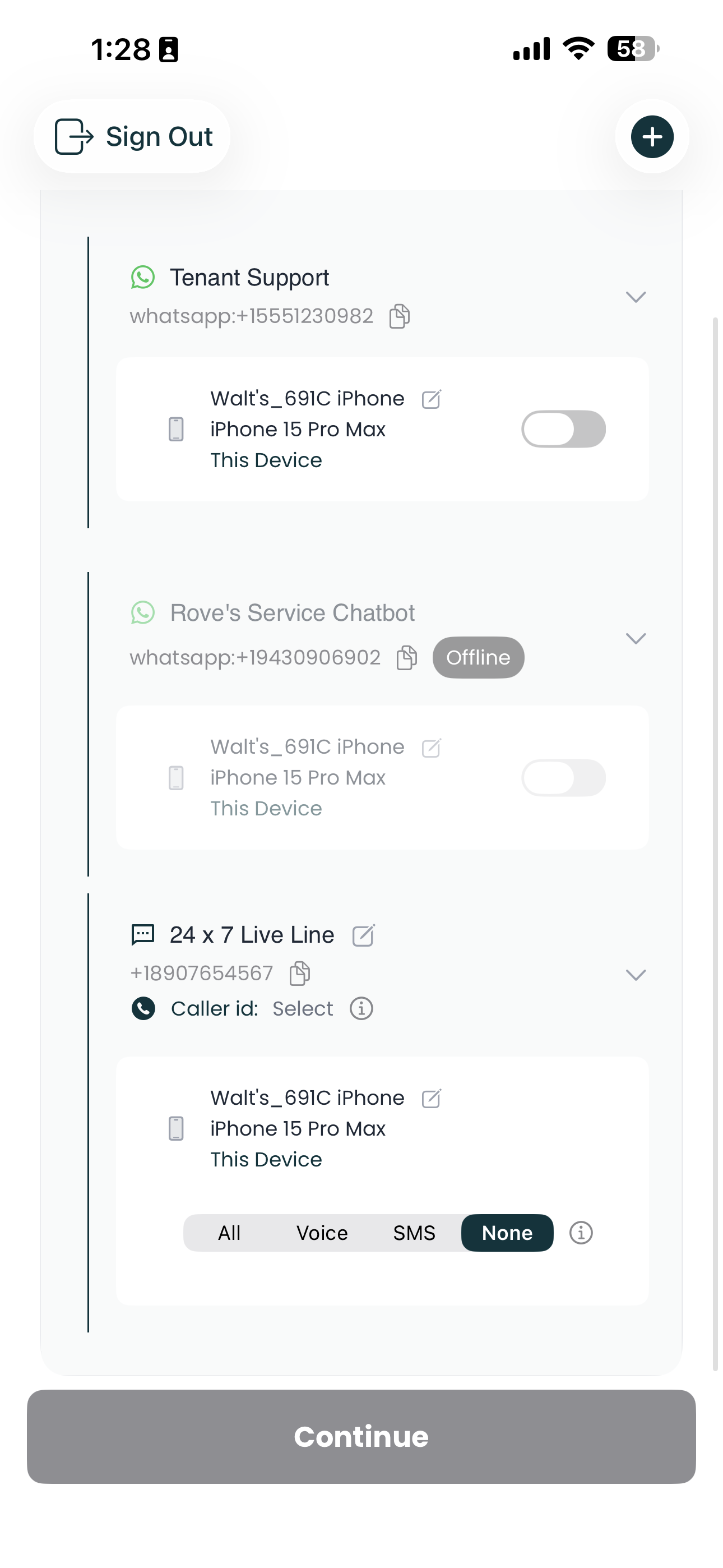
Once connected, your Twilio phone numbers will sync automatically. For each number, you can choose what services to enable:
- All — Receive both calls and SMS
- Voice — Calls only
- SMS — Text messages only
- None — Temporarily disable the number
That's it! You're ready to start calling and texting.
Making Calls with Mango
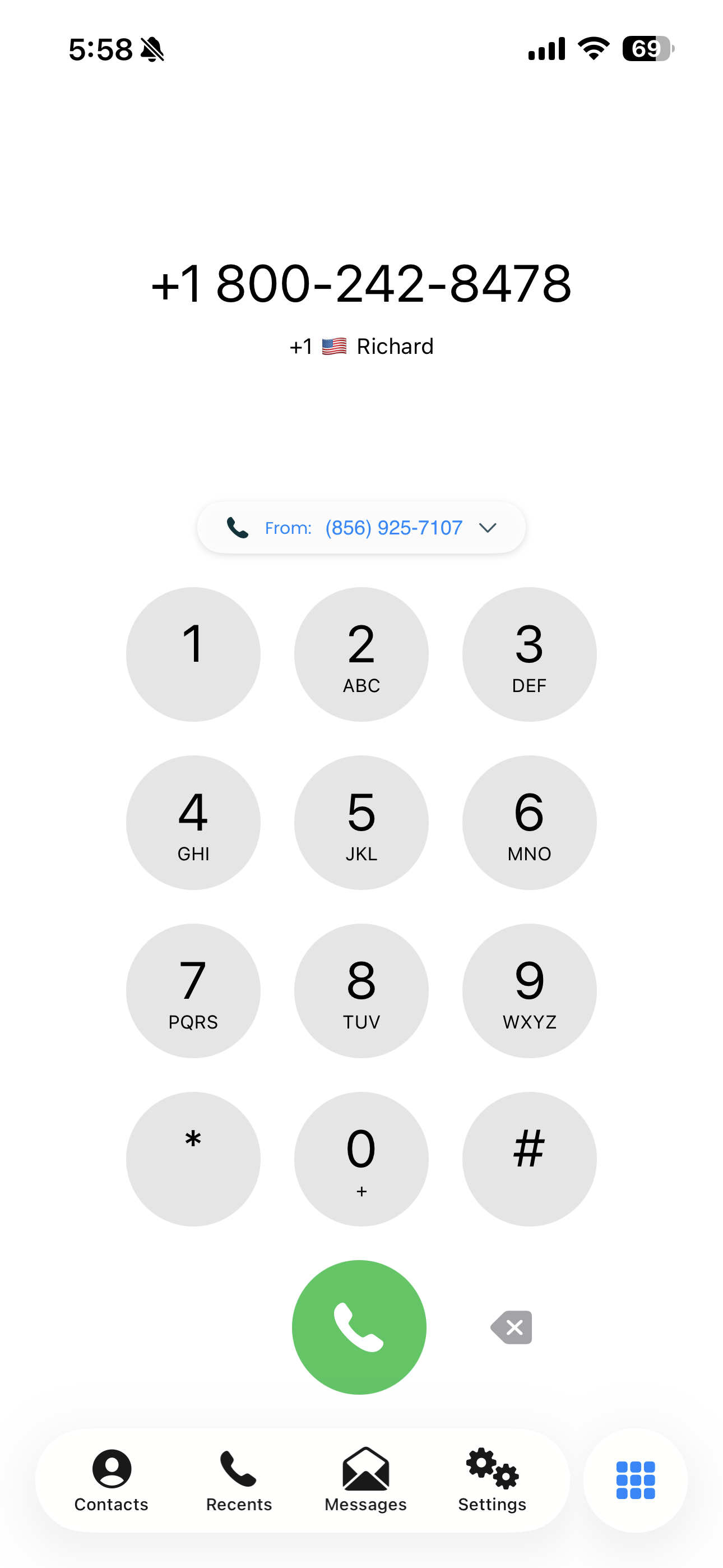
Making calls in Mango works just like your regular phone app.
To Make a Call:
- Open Mango and go to the Keypad or Contacts
- Enter the number or select a contact
- Choose which of your Twilio numbers to call from
- Tap the call button
Receiving Calls:
When someone calls your Twilio number, you'll get a notification just like a regular phone call. You can answer, decline, or send to voicemail.
Sending Messages with Mango
Mango supports both SMS and RCS messaging, giving you flexibility in how you communicate.
SMS Messaging
- Works with any mobile phone
- No internet required for recipients
- Standard text messaging experience
RCS Business Messaging
RCS (Rich Communication Services) takes your business messaging to the next level. With an RCS Business Messaging Profile, you can provide professional human support with:
- Read receipts — See when your message was read
- High-quality media — Send photos and videos in full resolution
- Branded business profile — Your business name and logo appear to customers
- Rich cards and carousels — Share interactive content
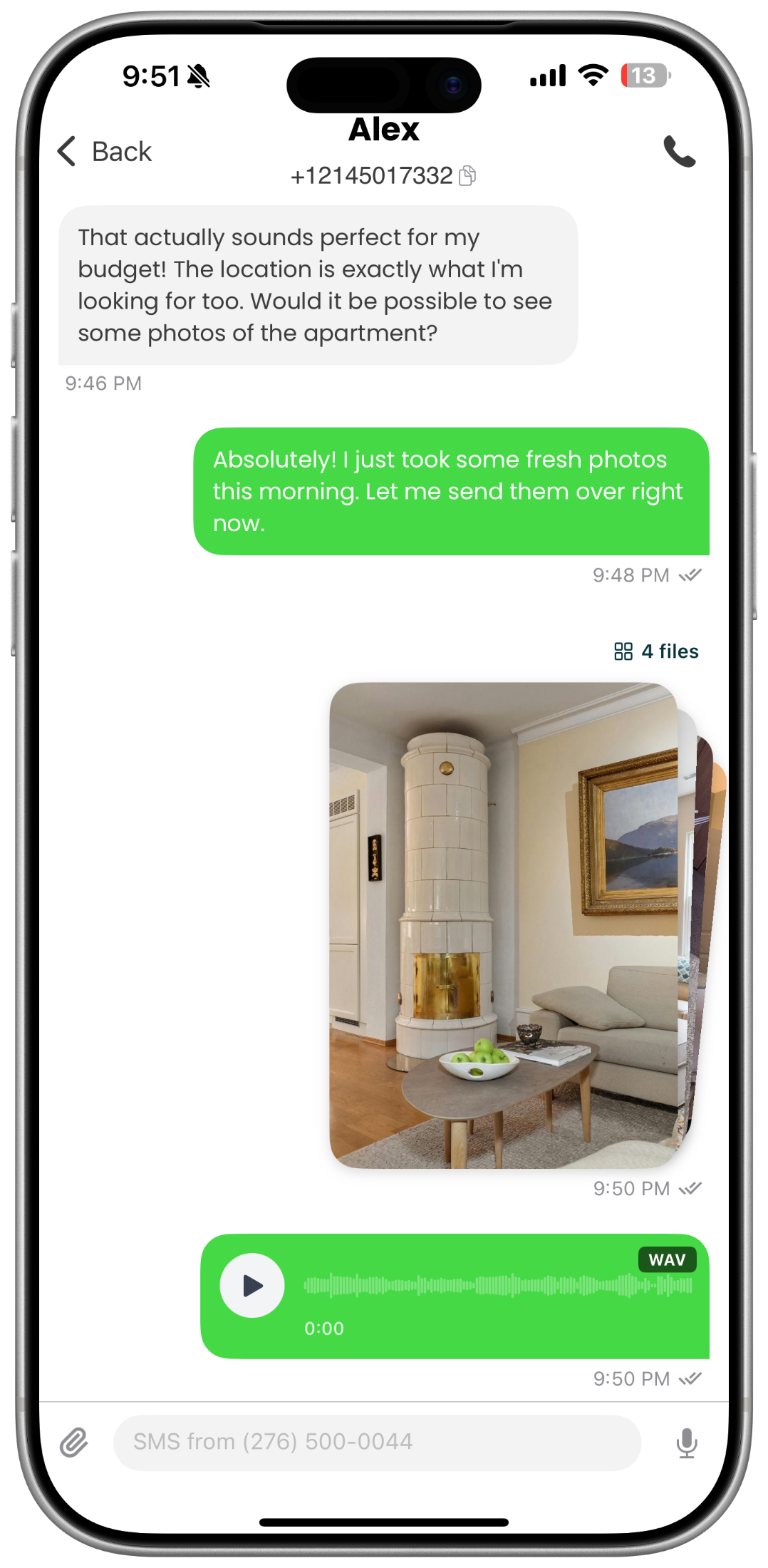
To send a message:
- Open a conversation or start a new one
- Type your message
- Tap send
It's that simple.
Managing Multiple Phone Numbers
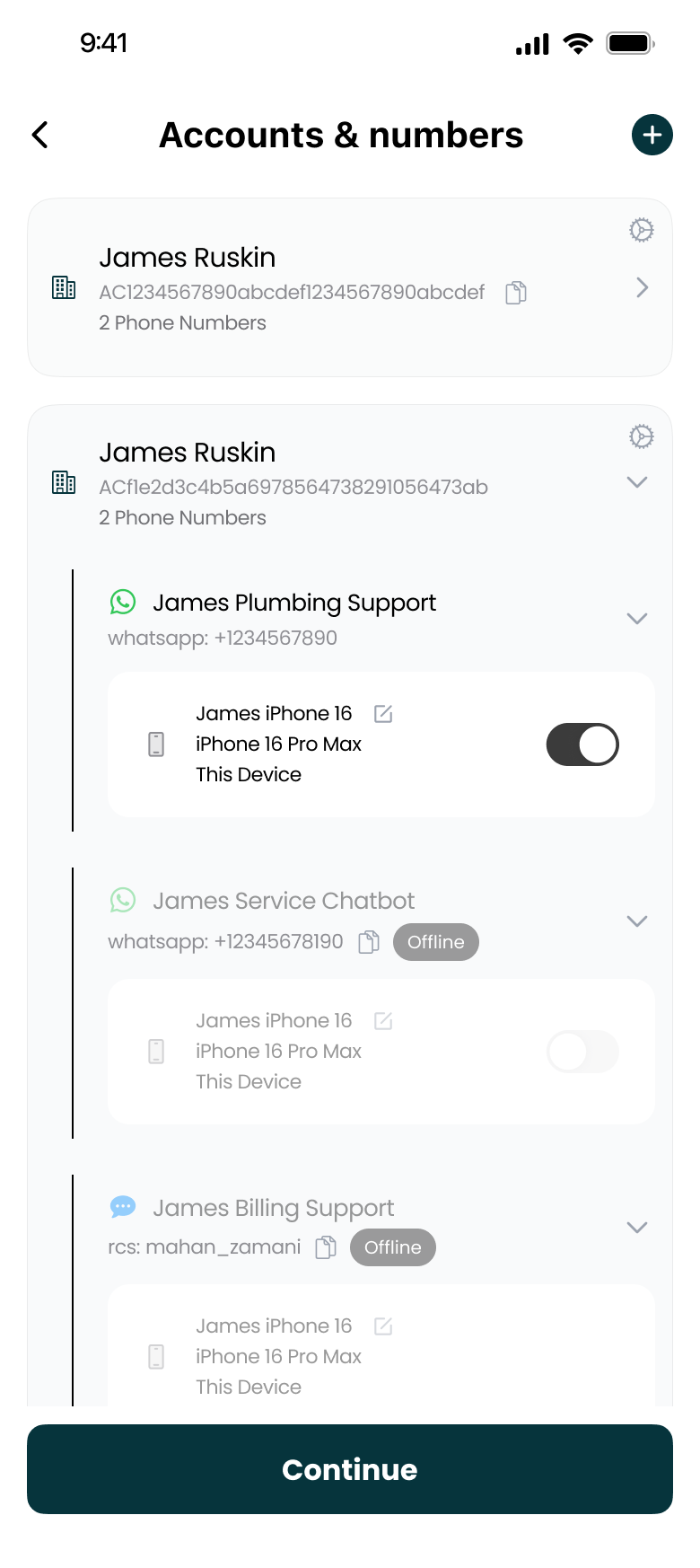
One of Mango's best features is managing multiple Twilio numbers in one place.
You might have:
- A main business line
- A sales phone number
- A support line
- Different numbers for different cities or regions
All of these live together in Mango, and you can easily switch between them when making calls or sending messages.
Voicemail Made Easy
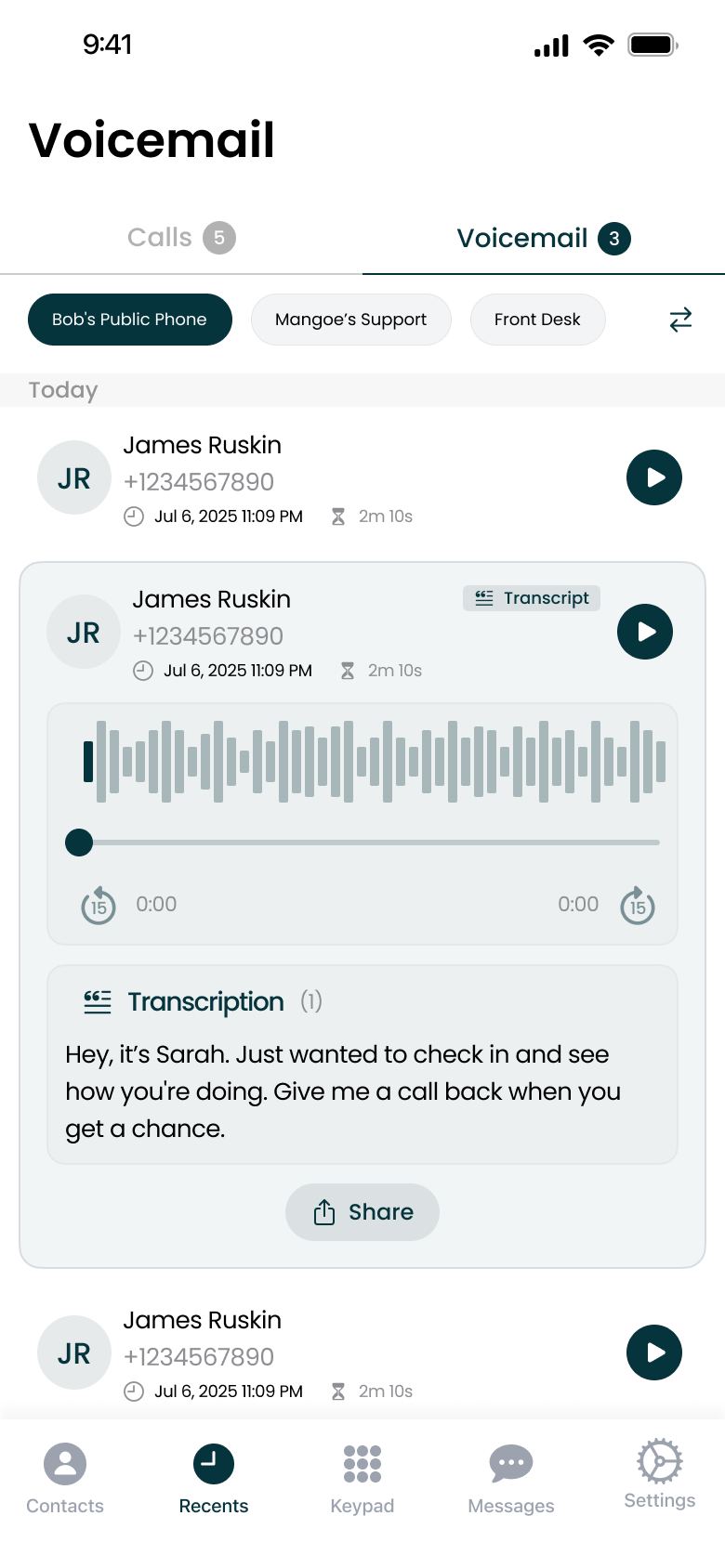
Mango lets you set up professional voicemail for your Twilio numbers.
What You Can Do:
- Record custom greetings — Create personalized voicemail messages
- Listen to voicemails — Access all your voicemails in the app
- Different greetings for different scenarios — Set up various voicemail configurations
Business Hours Feature
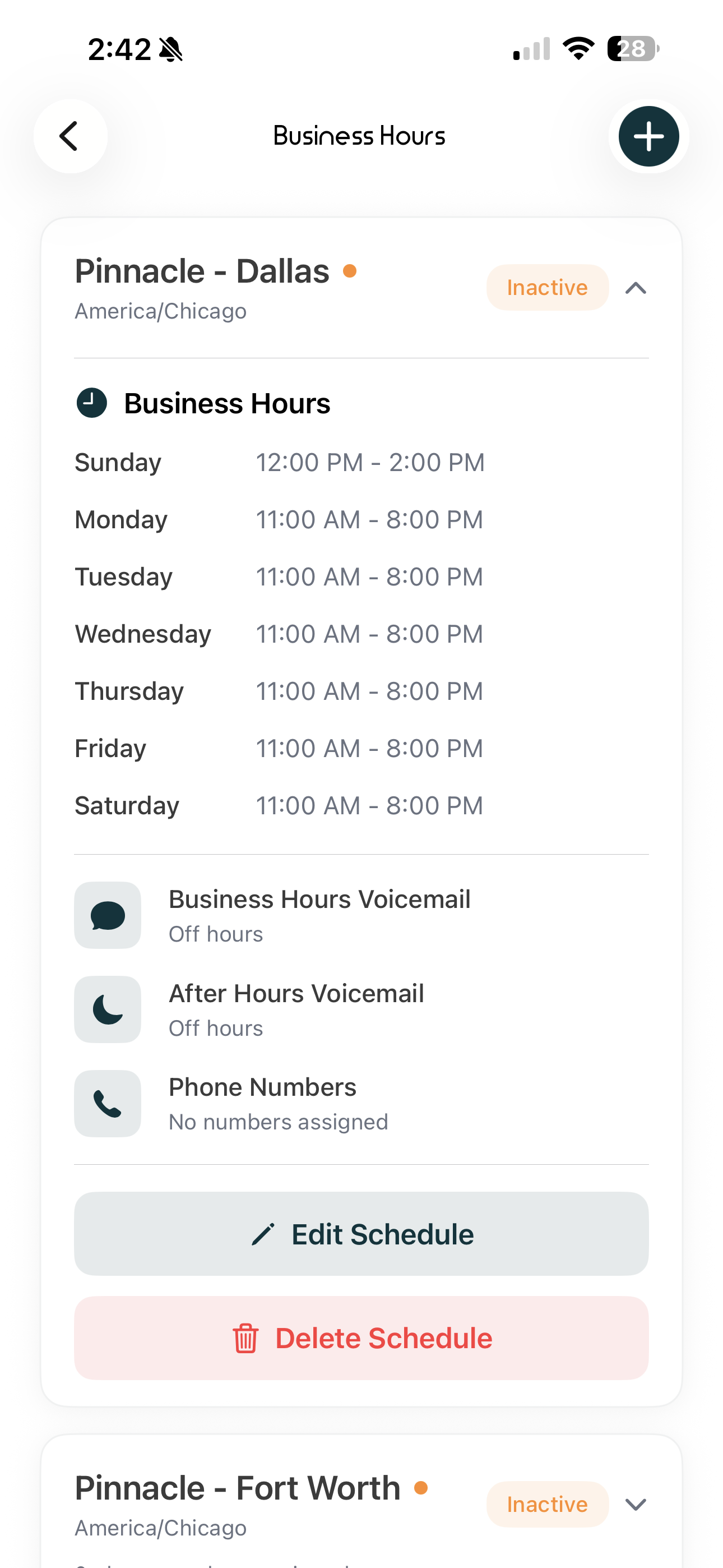
Need calls handled differently based on the time of day? Business Hours lets you:
- Define your working schedule — Set when you're available
- Route calls automatically — Send after-hours calls to voicemail
- Use different greetings — Play different messages during and after business hours
For example:
- During business hours: Calls ring your phone before going to voicemail
- After hours: Calls go directly to voicemail with a "We're closed" greeting
This is perfect for maintaining work-life balance while staying professional.
Call Recording
For businesses that need to keep records of conversations, Mango offers call recording functionality.
- Record important calls
- Access recordings later in the app
- Useful for training, compliance, or reference
Important: Always check your local laws regarding call recording consent requirements.
Why Use Mango Instead of Other Options?
You might be wondering: "Why not just use the Twilio website or build my own app?"
Here's why Mango stands out:
- Native iOS Experience — Designed specifically for iPhone and iPad, not a web wrapper
- No Coding Required — Just connect your account and go
- Real-Time Notifications — Get calls and messages instantly
- Privacy Focused — Your calls and messages stay on your device
- Affordable — Much cheaper than enterprise VoIP solutions
- All-in-One — Calls, SMS, RCS, voicemail, and business hours in one app
Pricing
Mango is completely free for one phone number!
You get unlimited calls and SMS on your first Twilio number at no cost—you only pay Twilio's standard rates for usage. If you need to manage multiple phone numbers or want access to premium features, Mango offers affordable subscription plans.
Remember: Mango doesn't mark up Twilio's costs. You pay Twilio directly for your calls and messages.
Getting Help
If you run into any issues:
- Check our other guides on linking your Twilio account and setting up business hours
- Contact Mango support through the app
- Visit our website at getmangoapp.com
Ready to Get Started?
Mango makes it incredibly easy to use your Twilio phone numbers on the go. Whether you need a business line, want to keep personal and work calls separate, or just need an easy way to manage multiple phone numbers—Mango has you covered.
Download Mango today and turn your Twilio numbers into a powerful mobile communication system!