
Managing calls professionally is essential for any business. With Mango's Business Hours feature, you can automatically handle incoming calls based on your schedule—ensuring customers get the right response whether you're open or closed
This guide will show you how to set up business hours with custom voicemail configurations for working hours and after-hours.
What Are Business Hours?
Business Hours in Mango allow you to define your working schedule and control how calls are handled during different times. You can set up:
- Working hours: When your business is open and available
- Off hours: When your business is closed
- Different voicemail configurations: Custom settings for each time period
For example, during working hours, unanswered calls can go to voicemail after several rings. During off hours, all calls can be sent directly to voicemail with a different greeting.
Use Cases
Business Hours is perfect for:
-
Small businesses with set operating hours: Automatically inform callers when you're closed and when to expect a callback.
-
Multi-location businesses: Set different schedules for each location with specific phone numbers assigned to each schedule.
-
Professional services: Doctors, lawyers, and consultants can route calls appropriately based on office hours.
-
Seasonal businesses: Adjust your availability easily without manually changing settings every day.
-
Teams across time zones: Configure schedules based on regional business hours for better customer service.

Prerequisites
Before setting up Business Hours, make sure you have:
- A Twilio account connected to Mango
- At least one phone number active in Mango
- Voicemail configurations already created (Business Hours works on top of existing voicemail configs)
If you haven't set up voicemail yet, create your voicemail configurations first—you'll need at least one for working hours and optionally one for off hours.
Step 1: Create a Schedule
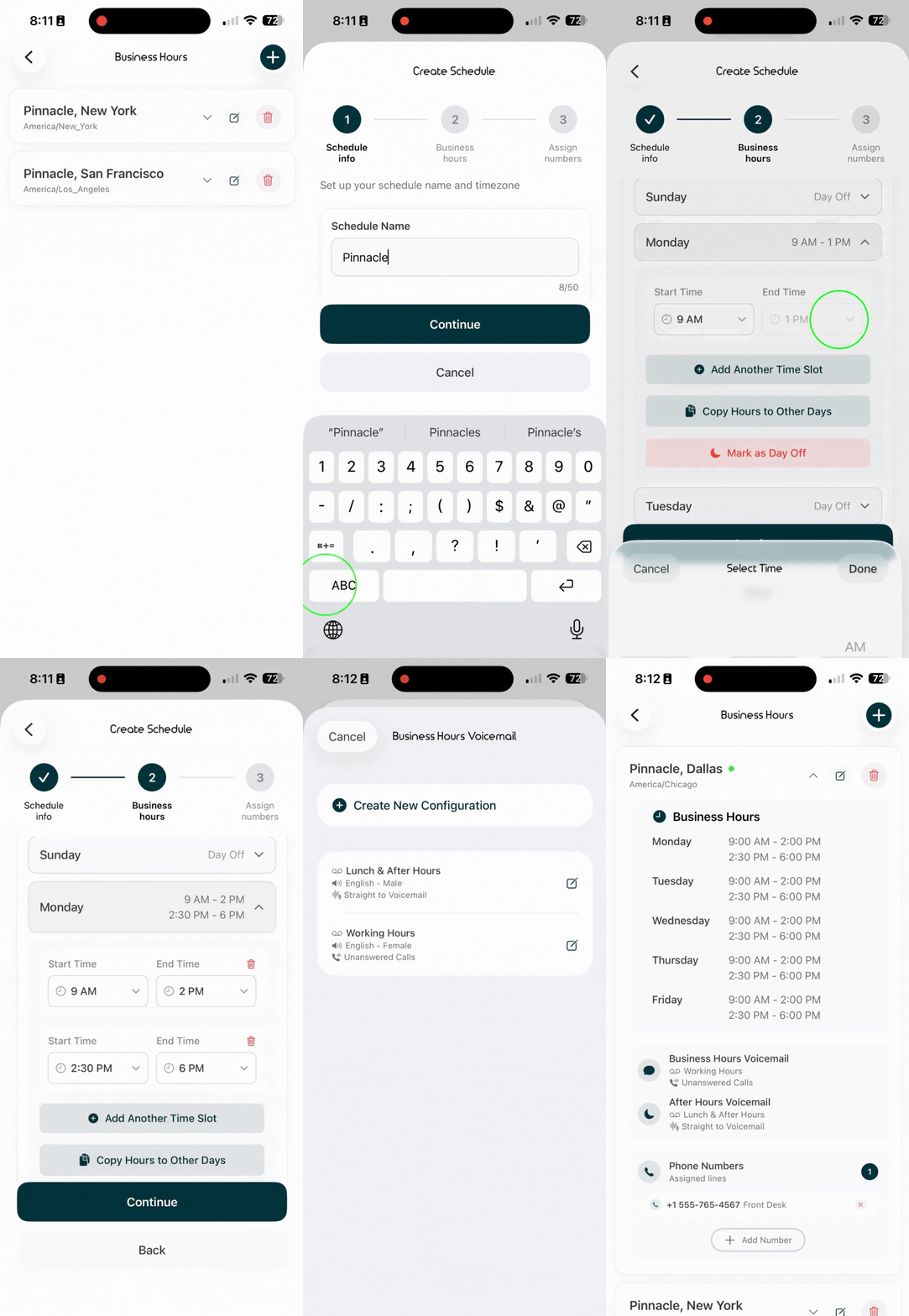
Start by giving your schedule a name and selecting the timezone.
-
Open the Mango app and navigate to Business Hours settings.
-
Tap "Create New Schedule" or "Add Schedule".
-
Enter a Schedule Name (e.g., "Main Office Hours", "East Coast Schedule", or "Weekend Coverage").
-
Select your Schedule Timezone from the dropdown menu. This ensures your hours are accurate regardless of where you are.
-
Tap "Next" to continue.
Step 2: Set Your Working Hours
Now define when your business is open.
-
You'll see a weekly calendar view where you can set hours for each day.
-
For each day:
- Set your opening time
- Set your closing time
- Add multiple time Slots if needed (e.g., exclude lunch breaks)
-
You can quickly apply the same hours to multiple days or customize each day individually.
-
Days with no hours are considered off hours automatically.
-
Review your schedule and tap "Next" when ready.
Step 3: Configure Voicemail Settings
This is where you define how calls are handled during working hours versus off hours.
Working Hours Voicemail
-
Under "Working Hours", select a voicemail configuration from your existing voicemail configs.
-
This voicemail setting typically allows calls to ring for a certain duration before going to voicemail—giving you time to answer customer calls.
-
Choose a configuration with an appropriate greeting like "We're currently assisting another customer. Please leave a message."
Off Hours Voicemail
-
Under "Off Hours", select a different voicemail configuration.
-
This setting can send calls directly to voicemail without ringing, or ring briefly before voicemail.
-
Choose a configuration with a greeting like "Thank you for calling. We're currently closed. Our business hours are [hours]. Please leave a message and we'll return your call."
Both configurations are independent, giving you complete control over the caller experience.
Step 4: Assign Phone Numbers
The final step is assigning phone numbers to your business hours schedule.
-
You'll see a list of your available phone numbers.
-
Select the phone numbers you want to apply this schedule to by checking the boxes next to them.
-
You can assign:
- A single number to one schedule
- Multiple numbers to the same schedule
- Different numbers to different schedules (useful for multi-location businesses)
-
Tap "Save" or "Complete" to activate your business hours.
Your selected phone numbers will now automatically follow the schedule you created, routing calls to the appropriate voicemail configuration based on the time of day.
Managing Your Schedules
After setup, you can:
- Edit schedules: Change hours, timezone, or voicemail configs anytime
- Create multiple schedules: Set up different schedules for different purposes
- Reassign numbers: Move phone numbers between schedules as needed
Tips for Best Results
-
Test your setup: Call your number during working hours and off hours to verify voicemail greetings play correctly.
-
Use clear voicemail greetings: Make sure callers know when to expect a callback.
-
Consider time zones: If customers call from different regions, mention your timezone in your voicemail greeting.
-
Review regularly: Update your schedule as your business needs change.
Troubleshooting
Calls not following the schedule?
- Check that the correct phone number is assigned to the schedule
- Verify your timezone setting is correct
- Ensure both voicemail configurations are properly set up
Wrong voicemail playing?
- Confirm you selected the correct voicemail config for working hours vs. off hours
- Check that your schedule hours are set correctly for your timezone
Phone number not showing up?
- Make sure the number is active in your Mango account
- Verify the number isn't already assigned to another schedule
Conclusion
Business Hours in Mango gives you professional call management without the complexity. Set your schedule once, assign your phone numbers, and let Mango handle the rest—ensuring every caller gets the right experience at the right time.
Need help? Contact Mango support or check out our other guides on voicemail configuration and call management features.